

Google Business Profile Help
How to Add Go High Level Designs as a Manager on Your Google Business Profile
This gives us permission to update and manage your profile for you. You stay the owner. You never share your password. It takes about 2 minutes.
- 7 quick steps
- About 2 minutes
- Works on phone or computer
Prefer to watch? This 1-minute video walks through every step below.
Before you start
Sign in to the Google account that owns your Business Profile. If you're signed in to a different account, you won't see the settings below.
Have our email ready: [email protected]
Add us as a manager in 7 steps
-
Step 1
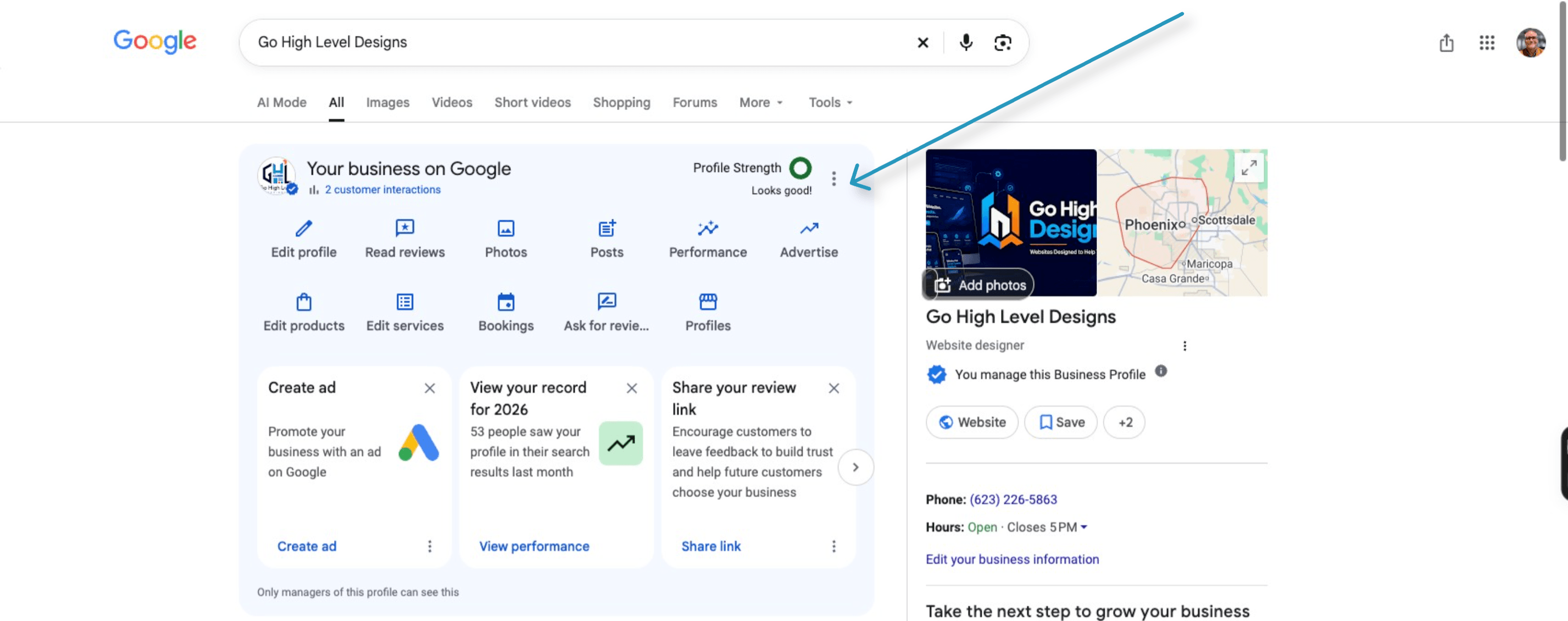
Find your profile
Search for your business name directly on Google, or go to Google Business Profile.
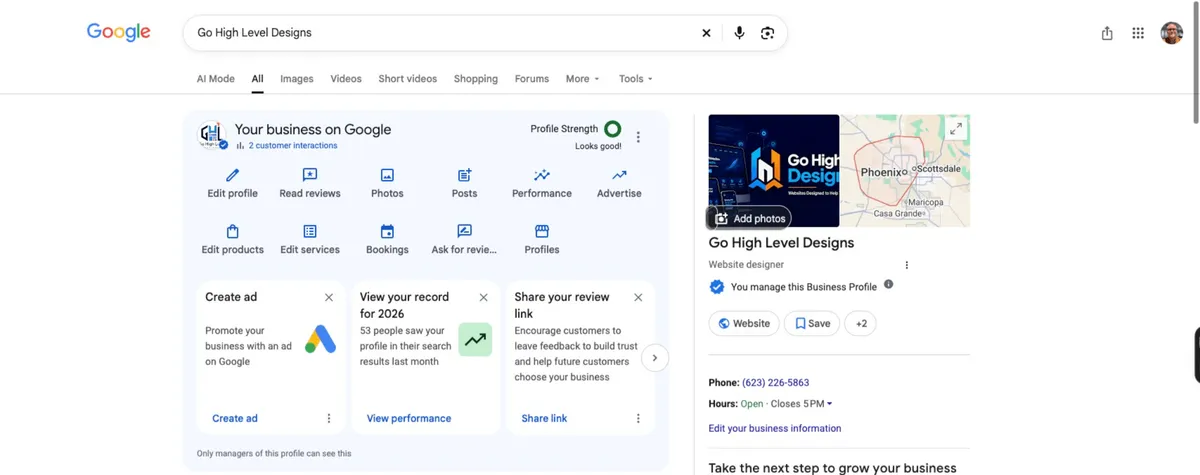
Step 1 screenshot · tap to enlarge -
Step 2
Open settings
Click the three-dot menu on your profile and select Business profile settings.
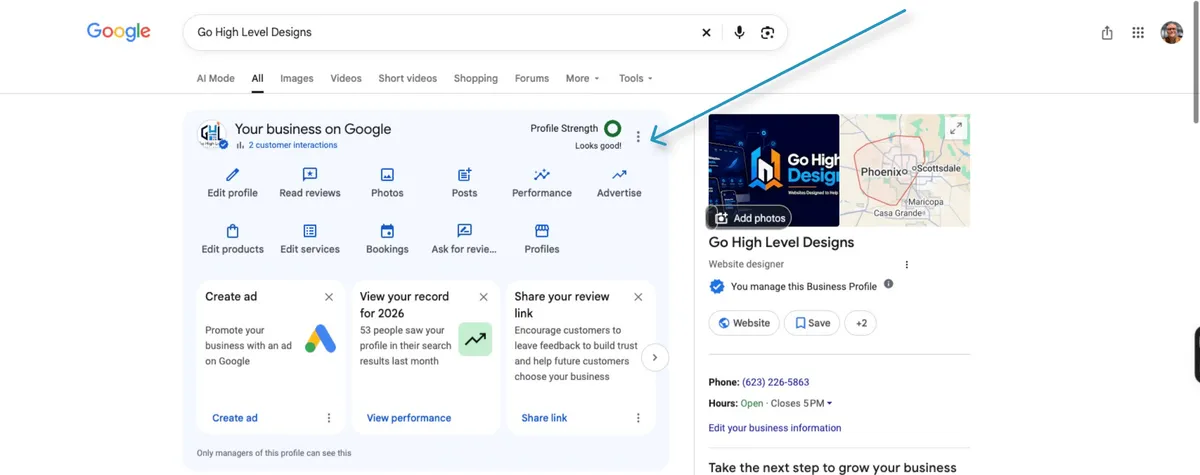
Step 2 screenshot · tap to enlarge -
Step 3
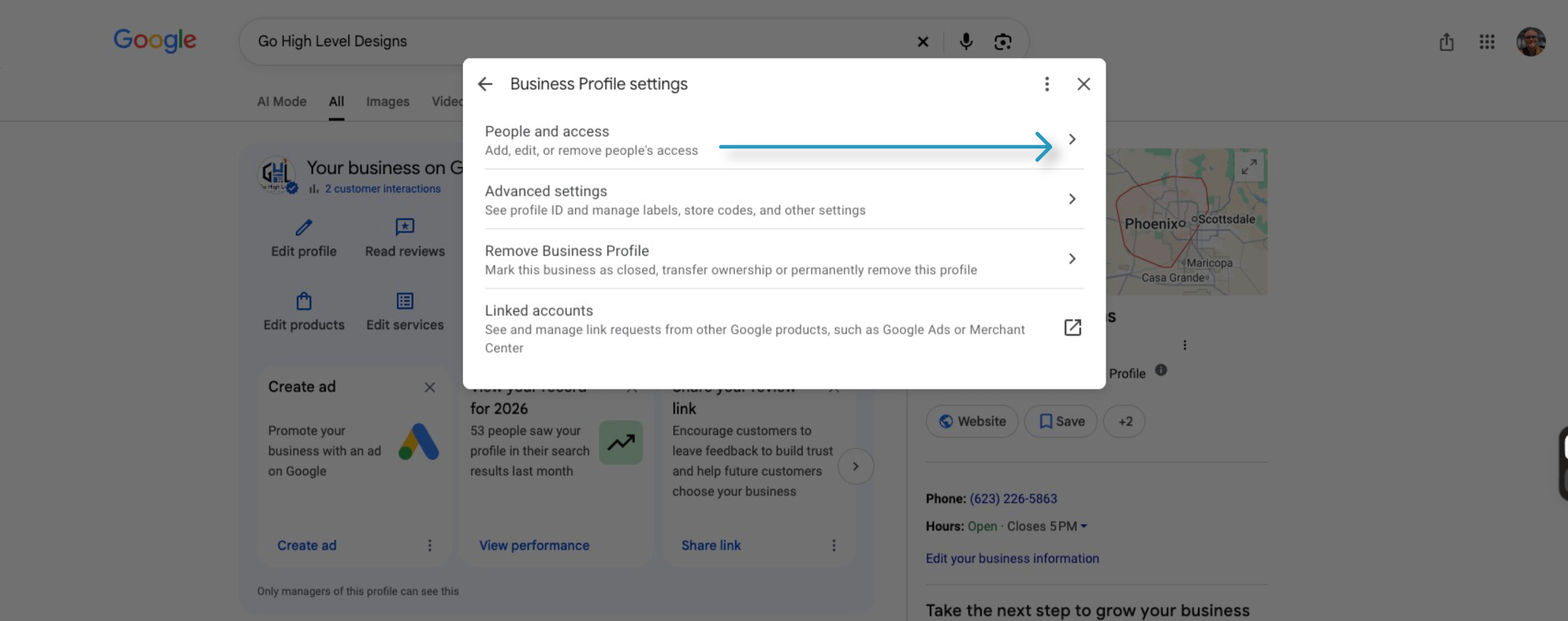
Go to access management
Click on People and access.
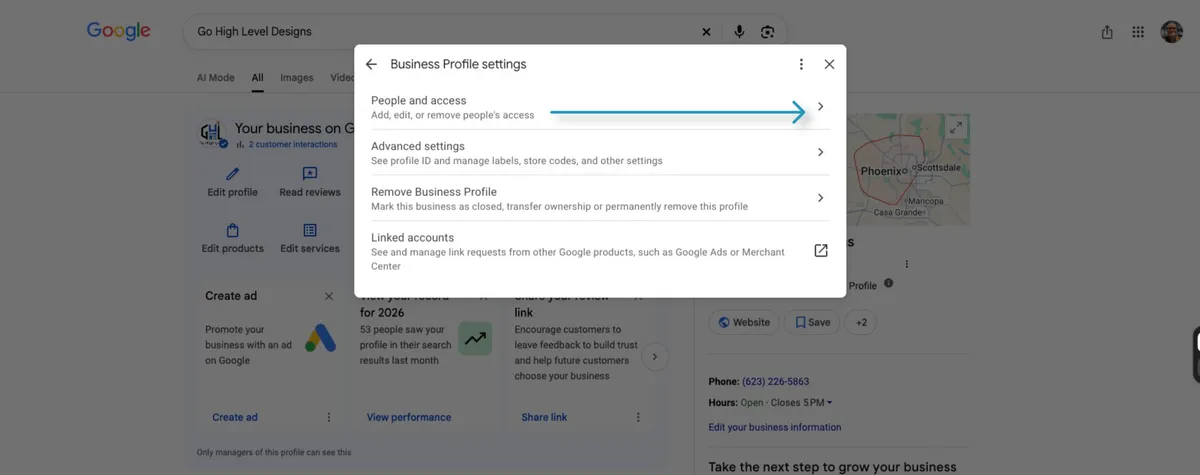
Step 3 screenshot · tap to enlarge -
Step 4
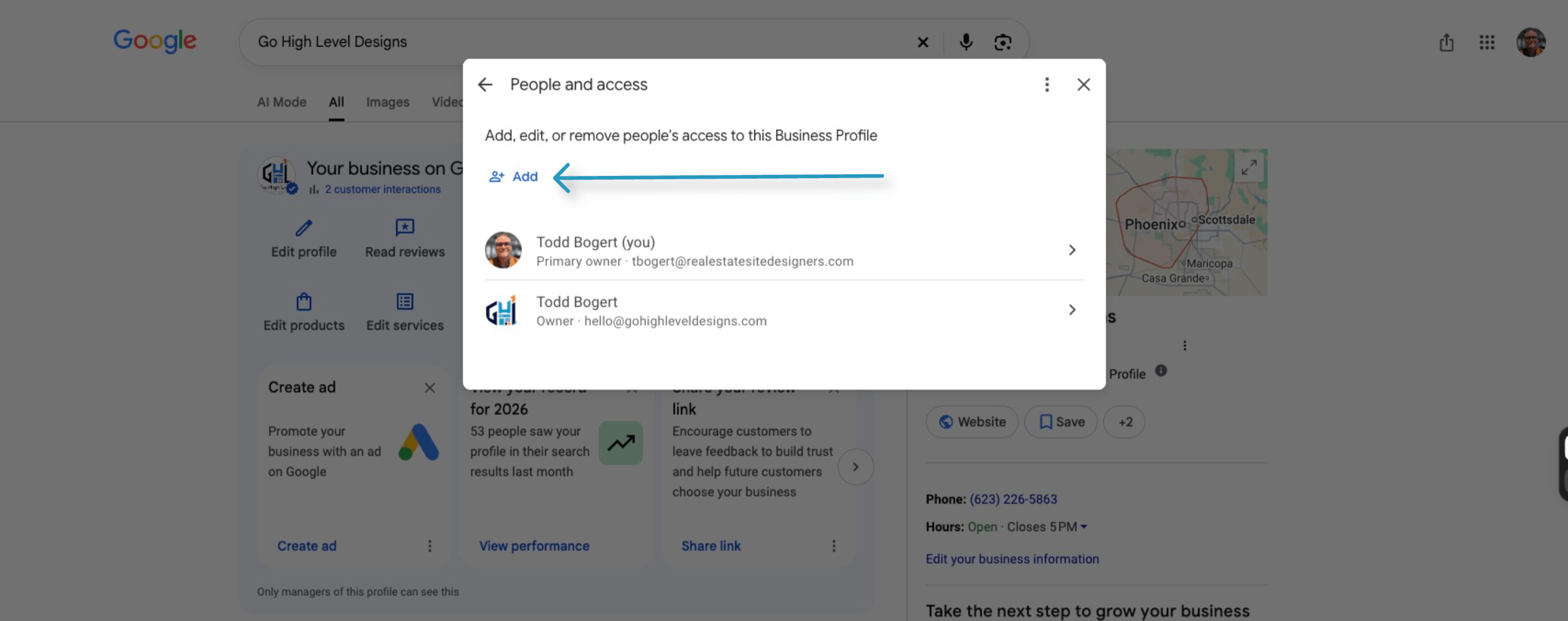
Add a user
Click the Add (+) button at the top left.
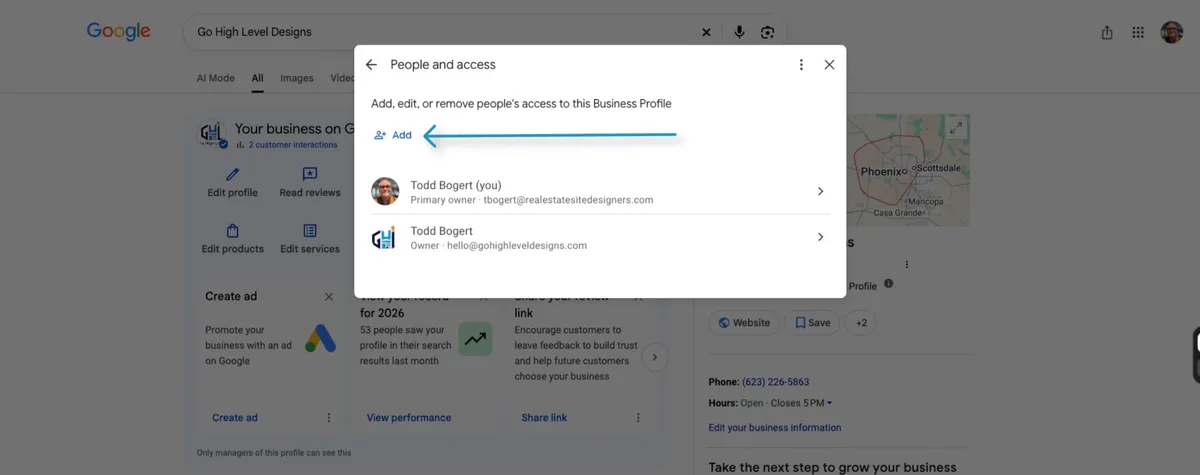
Step 4 screenshot · tap to enlarge -
Step 5
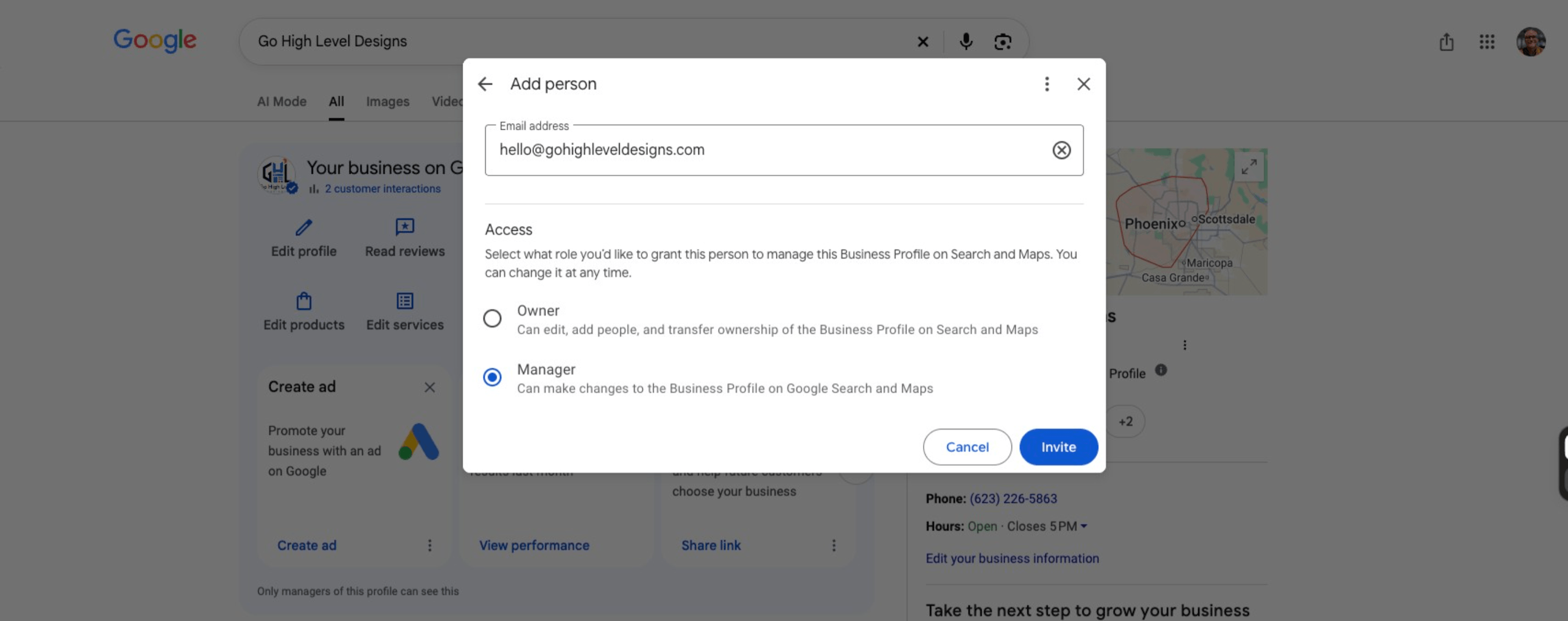
Enter email
Type the email address tied to the person's Google Account. For us, enter [email protected]:
Invite this email [email protected]Tip: tap Copy email, then paste it into Google so there are no typos.
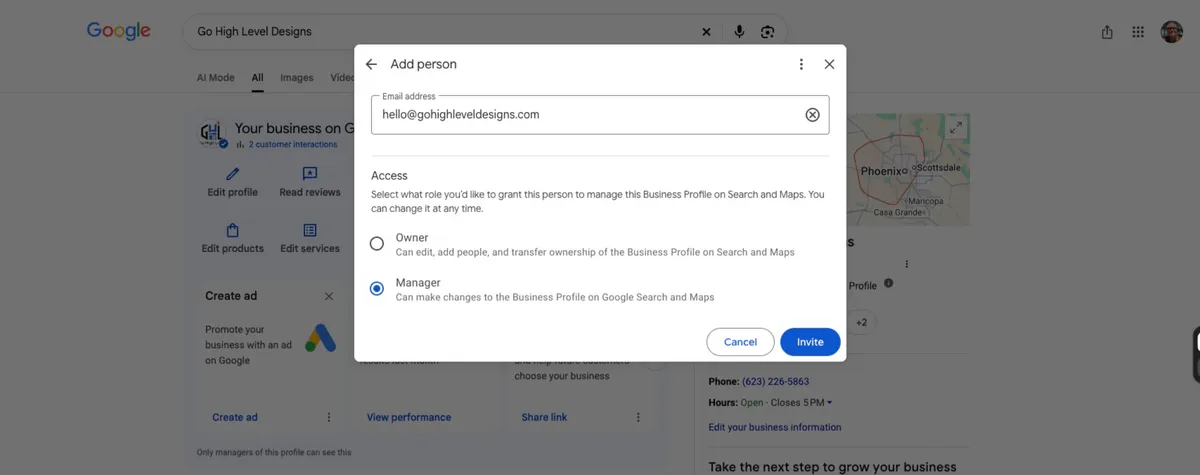
Step 5 screenshot · tap to enlarge -
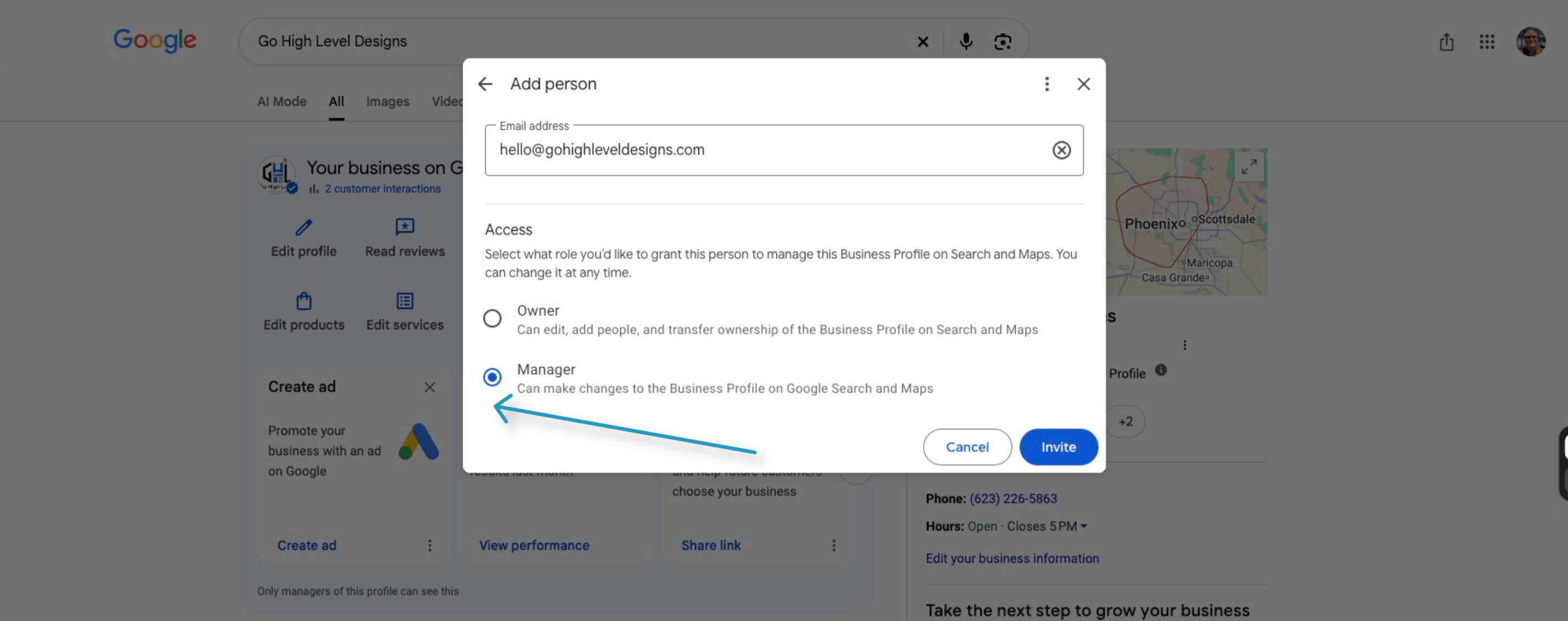
Step 6
Assign role
Choose Manager (or Owner if they need permission to add or remove users).
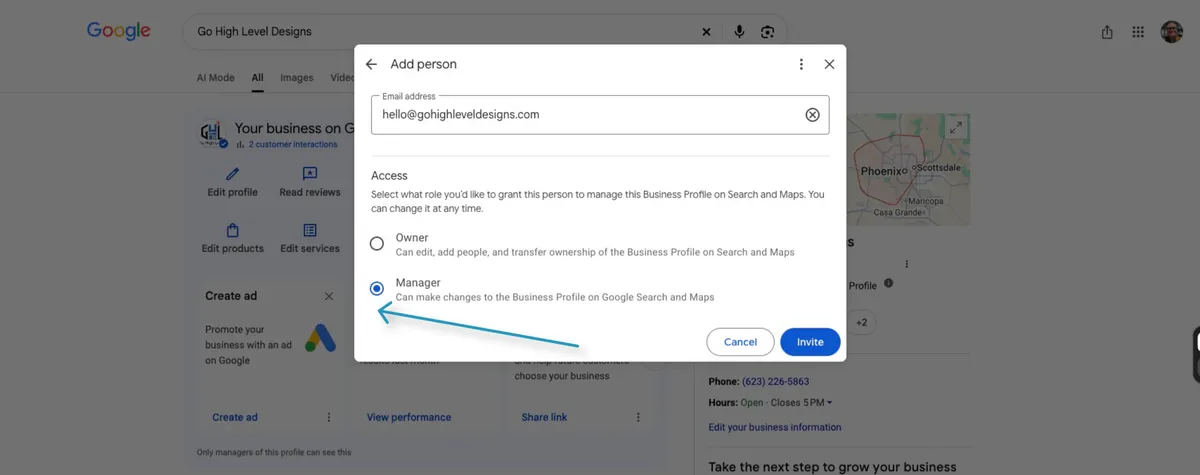
Step 6 screenshot · tap to enlarge -
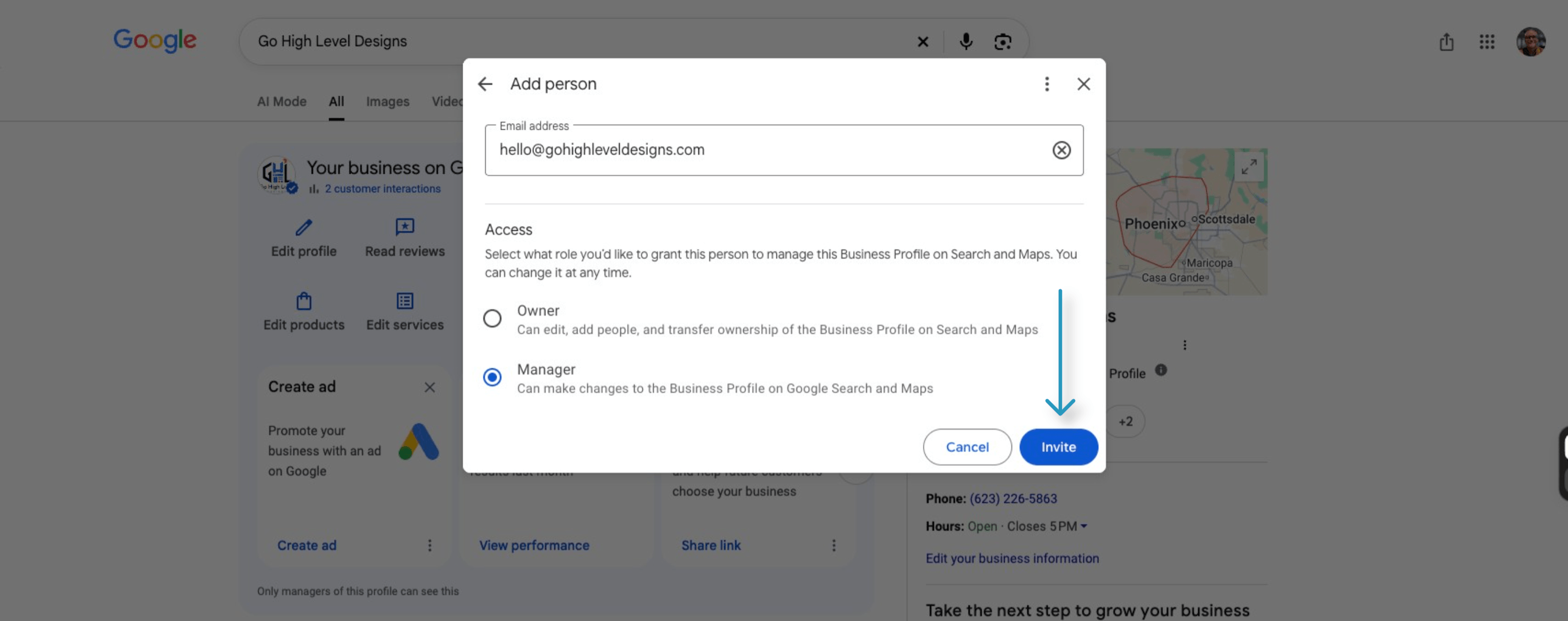
Step 7
Send invitation
Click Invite.
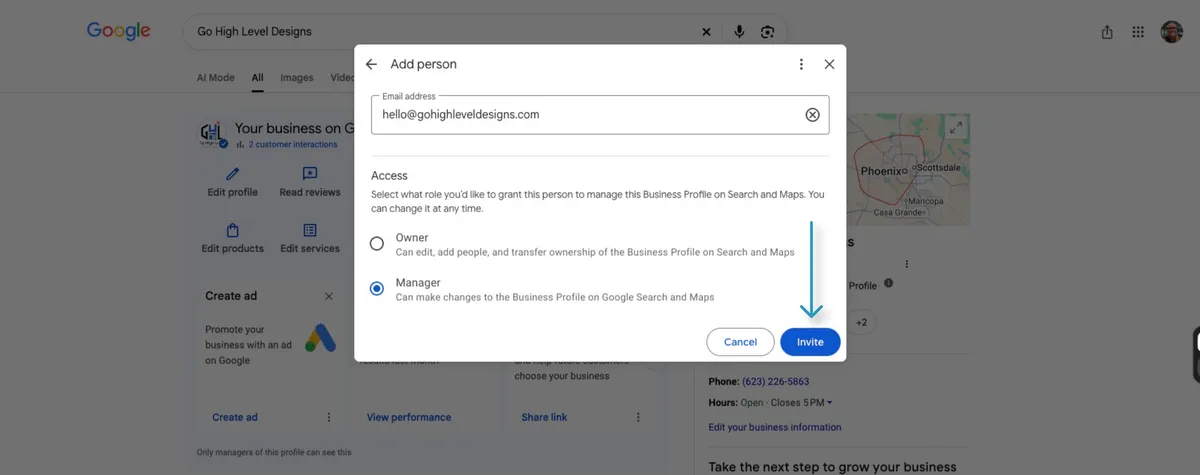
Step 7 screenshot · tap to enlarge
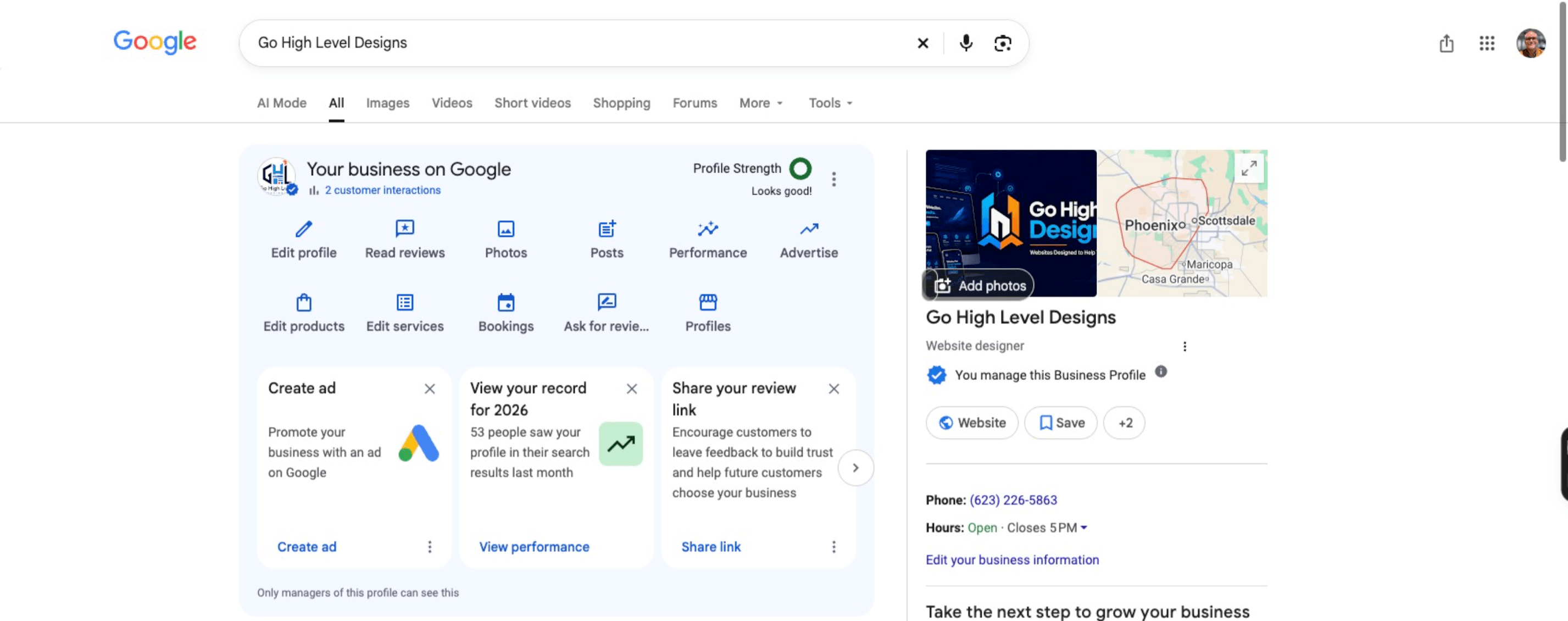
That's it. You're done.
Google sends us the invitation by email. As soon as we accept it, we'll show up under People and access, and we can start working on your profile.
You don't need to call or email us to say you finished. We'll see the invite come in.
Quick questions
Do I have to give you my Google password?
No. Adding us as a manager gives us access to your Business Profile only. It does not give us your password or access to your Gmail, Drive, or anything else in your Google account.
Should I pick Manager or Owner?
Pick Manager. A manager can update your profile, but only an owner can add or remove users. You stay in control of who has access.
I don't see Business profile settings. What now?
You're most likely signed in to a different Google account. Sign out, sign back in with the account that owns your profile, and start again at Step 1.
Can I remove your access later?
Yes. Go back to People and access, find our name in the list, and remove us. Once you do, our access ends.
Stuck on a step?
Most people finish in a couple of minutes. If something on your screen doesn't match the steps, give us a call and we'll walk you through it.
Go High Level Designs builds Goodyear small business websites and manages Google Business Profiles for local businesses and real estate agents.